
COLUMN
01/11/2026
Why Next.js Gets OOMKilled in Production: Finding and Fixing Memory Leaks in a Container
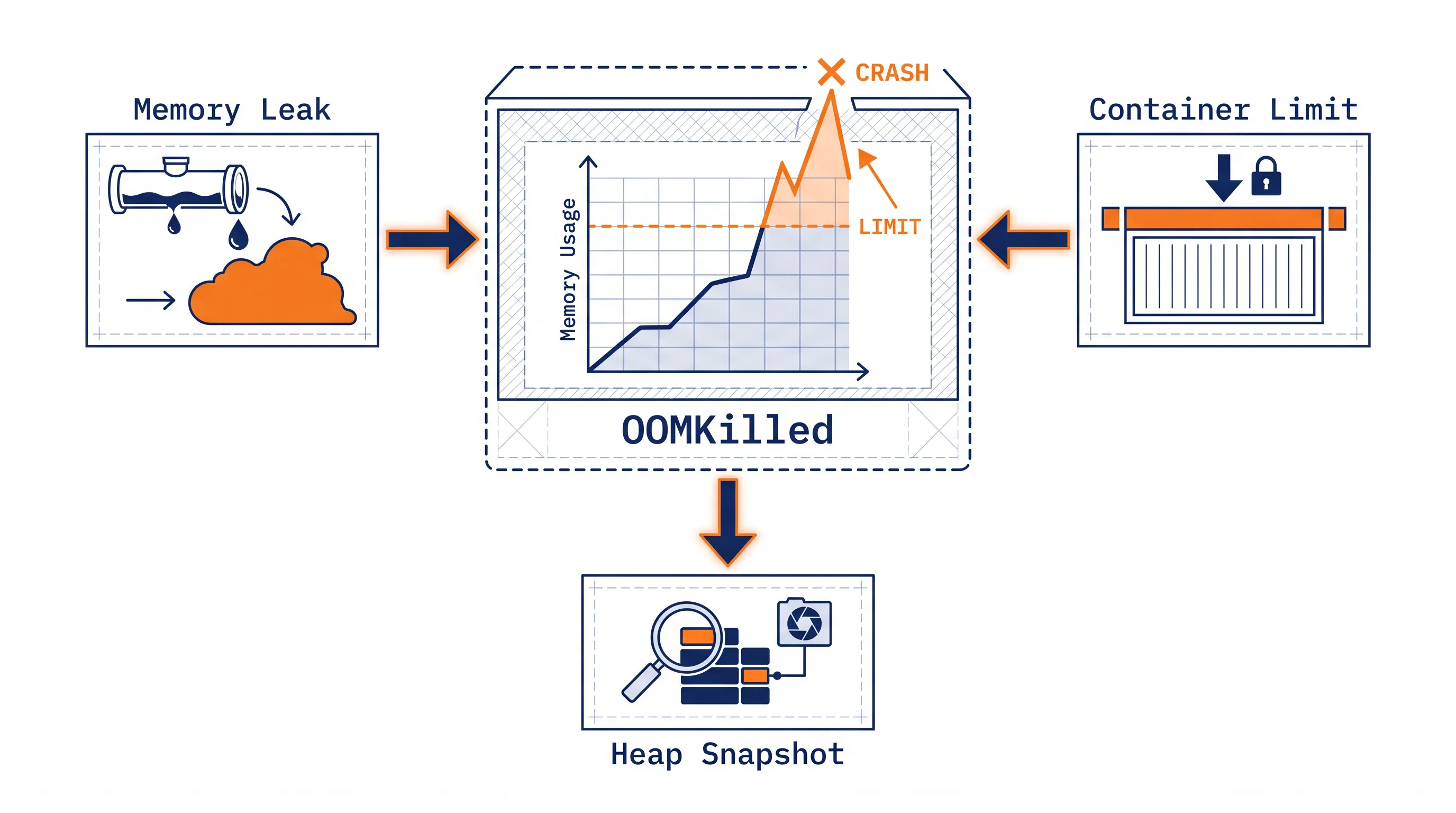
Your Next.js app runs fine in development and sails through the first few hours in production. Then, somewhere around hour six, the pod restarts. No stack trace, no crash log — just OOMKilled in the container's exit reason. This guide covers why that happens and how to actually find the leak instead of just bumping the memory limit and hoping.
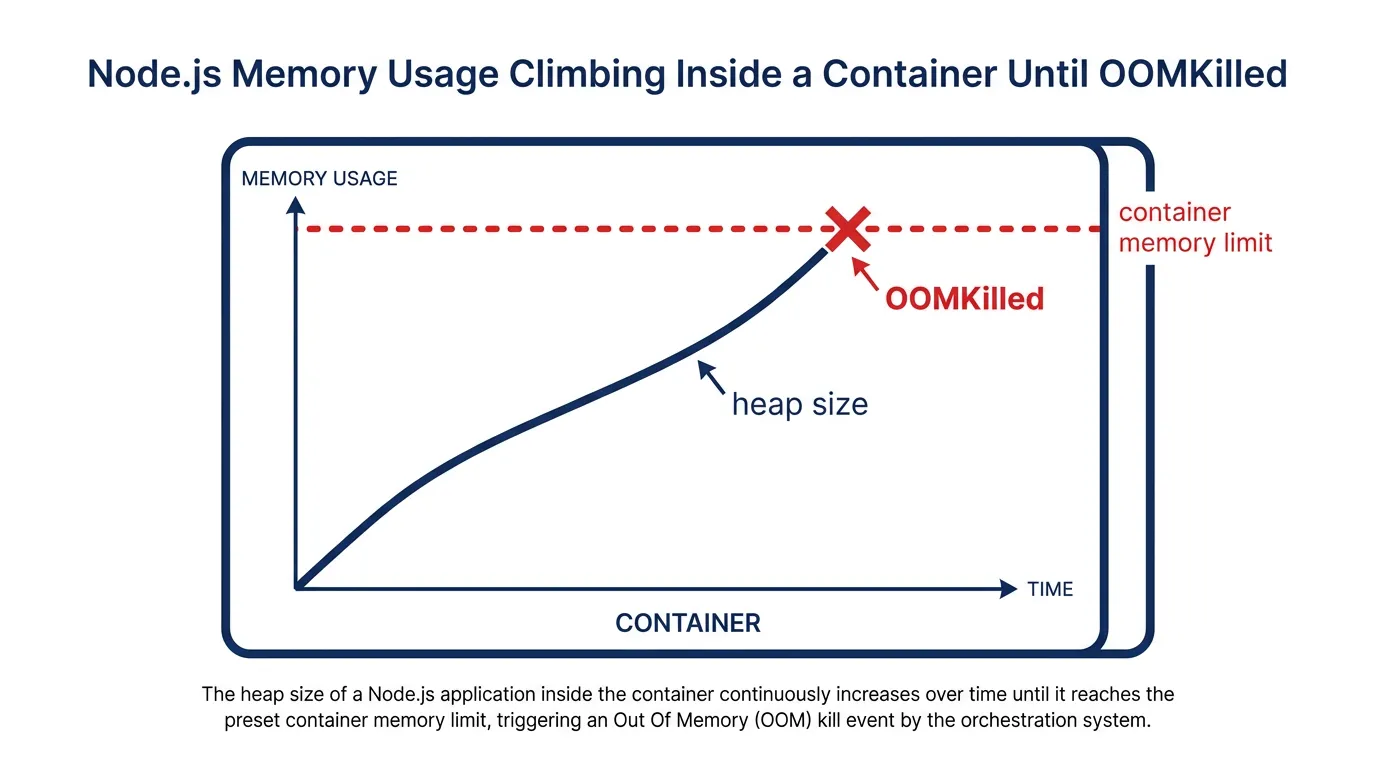
Why this mostly shows up after you containerize
On a developer's laptop, Node.js can use as much RAM as the OS will give it. Inside a container, it can only use what the cgroup allows — and that's where small, otherwise-harmless memory growth turns into a hard crash. Two Next.js-specific habits make this worse:
- The standalone server keeps running indefinitely. Unlike a serverless function that gets torn down after each invocation,
next start(or theserver.jsfrom a standalone build) is a long-lived Node process. Anything that leaks a little per request — an unbounded in-memory cache, an event listener that's never removed, a closure holding onto a large object — accumulates for as long as the process lives. - Several caches live in process memory by default. The Data Cache, the Router Cache on the server side, and any custom
Map-based memoization you've added all grow with traffic unless you explicitly bound them. Next.js Data Cache and Full Route Cache covers how these behave once you're off Vercel's managed infrastructure — the short version is that none of these caches evict automatically unless you build eviction logic yourself.
None of this is a defect in Next.js. It's the gap between "built for a platform that manages process lifecycle for you" and "running as a regular long-lived Linux process," which is exactly the gap self-hosting opens up.
Finding the leak before you guess at a fix
Raising the memory limit buys time, not a fix. Before touching resources.limits.memory, confirm you actually have a leak — not just a cache that's warming up.
- Watch the trend, not the snapshot.
kubectl top pod <name> --containersonce tells you nothing. Graph RSS over several hours. A process that climbs for 20 minutes after a deploy and then plateaus is warming a cache, not leaking. One that climbs in a straight line until it's killed, restarts, and climbs again at the same rate is leaking. - Take heap snapshots in place. Start the process with
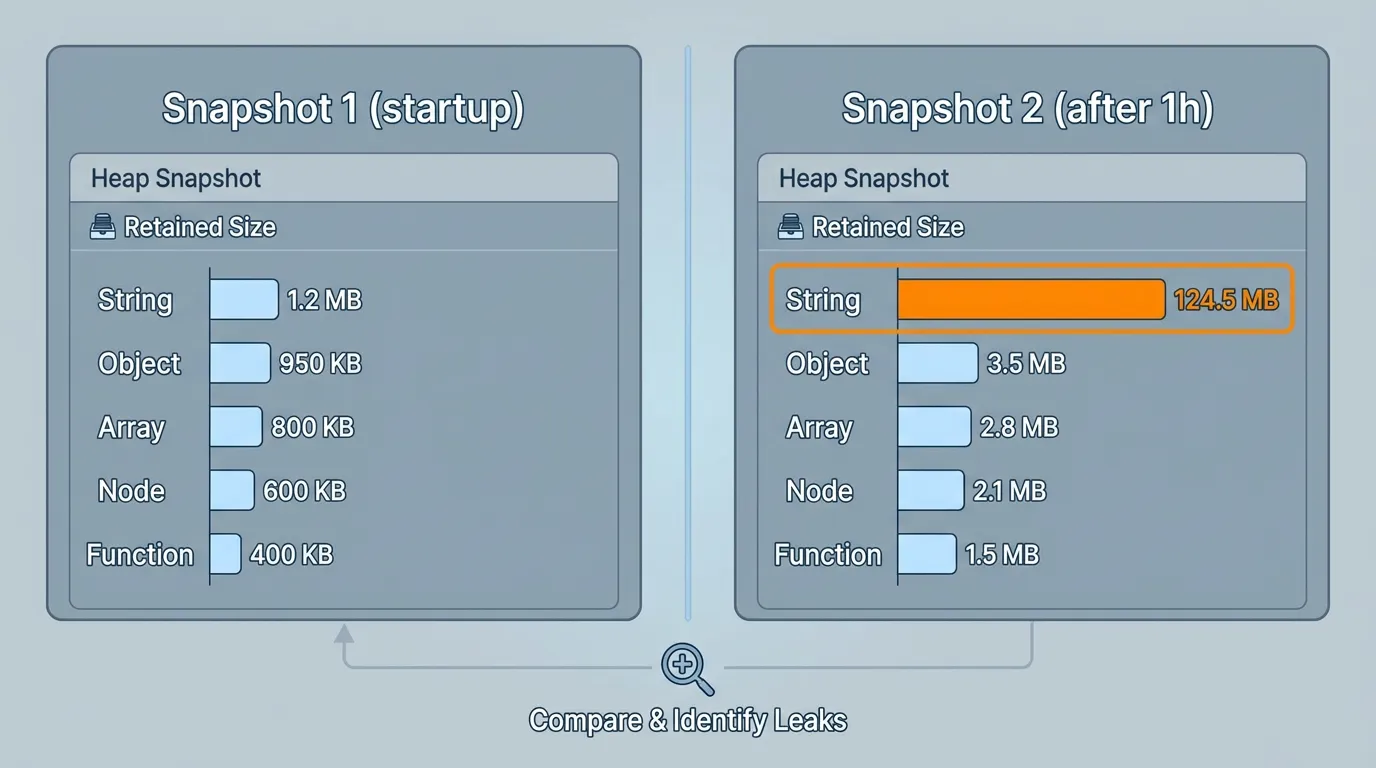
node --inspect=0.0.0.0:9229 server.js, port-forward to it (kubectl port-forward pod/<name> 9229:9229), and connect Chrome DevTools' Memory tab remotely. Take a snapshot shortly after startup and another after an hour of traffic, then use the comparison view to see which object types grew. - Check the usual Next.js suspects first, since they account for most of the leaks we see in self-hosted deployments:
- Module-level
Map/Set/array used as an ad-hoc cache with no size limit or TTL setInterval/setTimeoutregistered inside a request handler and never cleared- Database or Redis clients instantiated per-request instead of reused as a singleton
- Large request/response bodies held in closures passed into logging or analytics middleware
- Module-level
This is also where most teams stall: the app runs fine locally, but tracking down a slow leak under real traffic means wiring up heap inspection, log correlation, and enough history to tell a leak from normal cache warm-up — before a single line of code changes. Kubo runs standard Kubernetes with that observability layer already in place, so kubectl port-forward and metrics scraping work the same way they would on any cluster you've used before — no platform-specific debugging workflow to learn first.
The container settings that make leaks worse (or hide them)
Even a small leak becomes a production incident faster than it should if the container configuration works against you.
- Node's default heap ceiling ignores the container limit. On older Node versions, V8's default old-space size is based on total system memory, not the cgroup limit — so Node can think it has far more headroom than the container will actually allow, and OOMKilled hits before V8 ever triggers garbage collection in response to memory pressure. Set
--max-old-space-sizeexplicitly (for example,NODE_OPTIONS=--max-old-space-size=896for a 1Gi container limit, leaving room for non-heap memory) so V8 collects garbage before the kernel kills the process. - Memory-based autoscaling can mask a leak instead of catching it. If your HPA scales on memory utilization, a leaking pod just triggers more replicas rather than surfacing the problem — you get a higher bill and the same crash loop, just spread across more pods. How ContainerResource utilization and sidecars interact with HPA is a good read here: it covers a case where a sidecar's memory share diluted the signal the HPA was scaling on, which is the same class of problem — the metric you're scaling on isn't measuring what you think it's measuring.
- Liveness probes should fail before OOMKilled does. If your Next.js container doesn't expose a
/healthendpoint, Kubernetes has no way to restart it gracefully before the OOM killer steps in with a hard kill. A simple liveness probe that fails under memory pressure (checked viaprocess.memoryUsage()) at least gives you a clean restart instead of an abrupt one.
Monitoring so you catch it before users do
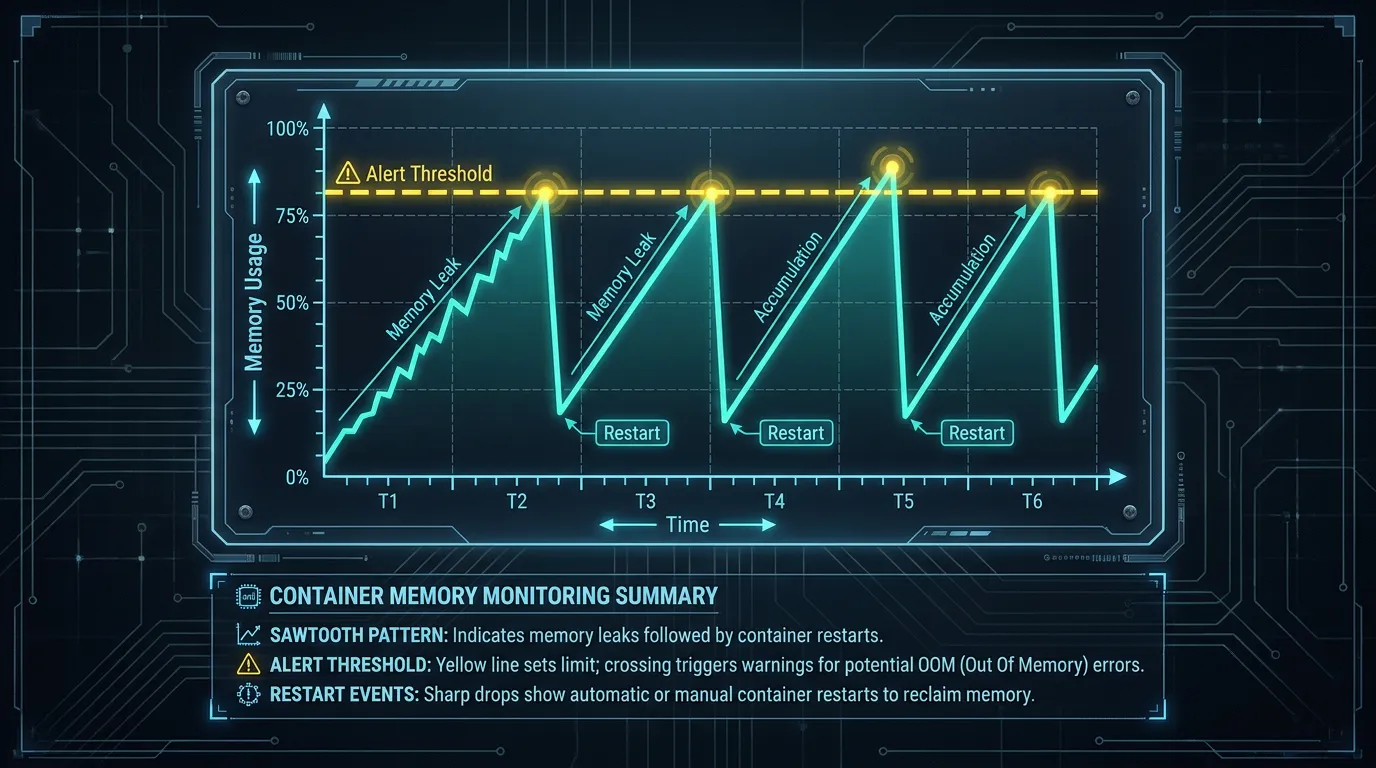
Debugging a leak after three pages of customer complaints is the expensive way to learn this. Once you've fixed the immediate leak, the longer-term fix is visibility: memory usage per pod, restart counts, and OOMKilled events all graphed over time, not just checked when something breaks.
The complete guide to monitoring Kubernetes with Prometheus walks through scraping container_memory_working_set_bytes and alerting on sustained growth — exactly the signal that would have caught the leak in this article hours before the first restart, instead of after it. Pair that with kube_pod_container_status_restarts_total and a slow memory leak shows up as a sawtooth pattern on a dashboard well before it becomes a page.
Setting the right memory limit (not just a bigger one)
Once the leak itself is fixed, there's still a sizing decision to make: the request and limit should reflect steady-state usage with headroom for normal traffic spikes, not the peak you saw while a leak was active. Setting the limit too high to "be safe" just means you're paying for memory the pod never uses — the kind of waste the complete Kubernetes cost optimization guide covers when it talks about right-sizing requests and limits instead of guessing. Set requests.memory close to the steady-state RSS you measured in step 1 above, and limits.memory with enough margin to absorb a traffic spike, not enough to hide a future leak.
Wrapping up
An OOMKilled Next.js pod is almost never a mystery once you look at the trend instead of the symptom: confirm it's a real leak with a few hours of RSS data, rule out the common Next.js causes (unbounded caches, uncleared timers, per-request clients), set --max-old-space-size to match your container's actual limit, and make sure monitoring would catch the next one before a restart does.
If you're weighing whether to keep managing this yourself or run it on infrastructure where the monitoring and autoscaling plumbing is already wired up, Kubo gives you standard Kubernetes — so the Prometheus setup, HPA tuning, and kubectl workflows above all work exactly as described, without a proprietary platform layer in between.